
Console Commands can be a great way of spicing up your gameplay in The Outer Worlds 2. They come especially handy if you are having trouble progressing through the story and quests, and need that extra bit of boost to help you with an encounter.
However, the console is not something that is available by default in the RPG. Fortunately, all you will need to do is get your hands on a community mod to be able to activate the commands that you want.
So if you are looking to make the most of all the exploits and cheats in Outer Worlds 2, then the guide below will help you out.
How to enable Console Commands in The Outer Worlds 2
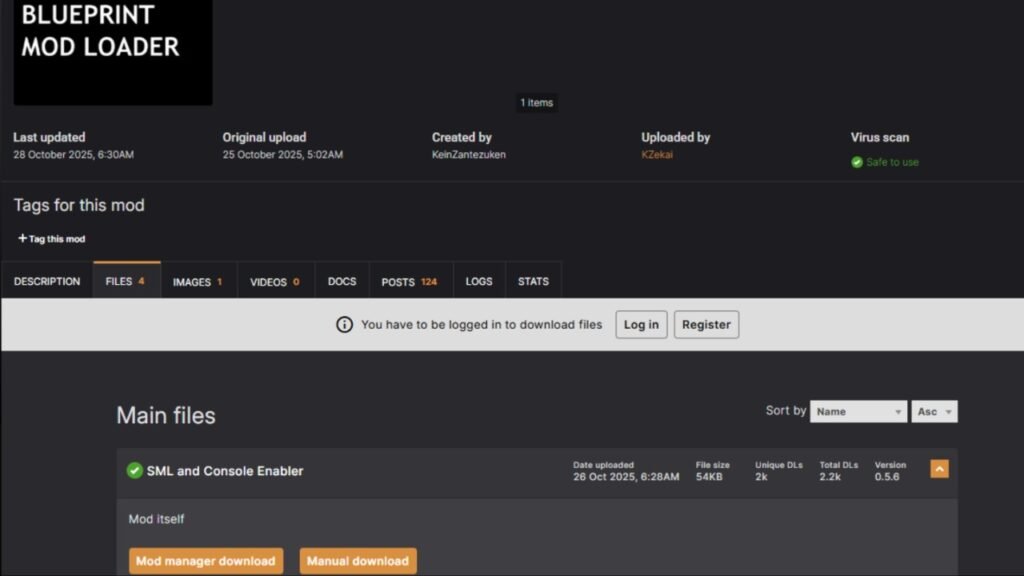
As mentioned, to be able to enable Console Commands in The Outer Worlds 2, the first thing you will need to do is to get the third-party tool, which is called “Console Enabler and BP ModLoader”. It’s a mod created by KeinZantezuken and is available on Nexus Mods.
As the mod acts as a Blueprint (BP) mod loader, you will be able to use it to support other mods as well as long as it supports the same framework.
Once you have found the latest version of the mod, here are a few steps that you will need to follow to download and install it:
- Head of the Console Enabler and BP ModLoader page on Nexus Mods, and make sure to download the following files:
- SML.zip
- ConsoleEnabler.zip
- Once it’s downloaded, you will need to locate the Game Installation Folder, which should be under The Outer Worlds 2 directory, and you will usually find it in this pathway: …\Arkansas\Content\Paks.
- Inside the Paks folder, you will need to make a new folder called “~mods”. Once done, you will need to extract files from both SML.zip and ConsoleEnabler.zip and then paste everything that is extracted into the “~mods” folder.
- Once the files are pasted, launch The Outer Worlds 2, and when you head inside the game, press the tilde (~) key on your keyboard, which should open up the console command pop-up.
How to use Console Commands in the Outer Worlds 2
Once you have access to Console Commands, you will now be able to type in the commands that you want and access all the exploits that it offers.
As for the Cheats that you can use, you will need to look for the “Cheats” subfolder in the “~mods” directory. Here you will find all the available console commands along with their expected input format.
However, the most important thing that you will need to take note of is the command syntax that each command demands. You will find more information on it in the “How to read cheats.txt” file.
All commands in The Outer Worlds 2 follow a common rule where each argument is separated by spaces and data types, which will include integers as well.
Here is a list of some of the Console Commands which you are likely going to use a lot, along with heir usage examples:
| Console Command | Effect | Example Usage |
|---|---|---|
| AddCurrency | Lets you add more in-game money to your inventory. | AddCurrency 5000 1 |
| GiveSkills | Allows you to take all skill categories to 20. | GiveSkills |
| LootTableDebug | Will let you spawn certain loot tables. | LootTableDebug MyTable 3 2 |
| AddTraitDebug / TraitAddDebug | Let’s you add certain character traits. (There are some examples.) | AddTraitDebug Trait_Brave |
Note: There are certain Console Commands that are not working at the moment. You might need to update the Console Enabler and BP ModLoader later on when there is a new version available to get the commands going.
Troubleshooting “Console Not Opening” error in The Outer Worlds 2
If you do not see the Console Commands tab pop up once you press the Tilde Key, then here are a few things that you will want to do:
- Make sure to switch your keyboard layout to English (US).
- If that still does not make the console command open, then try and repaste all the files in the mods folder. Say yes to replace all.
- If it still does not pop up, then thoroughly go through the README doc to see if you are doing anything wrong.
- Now, if the console commands open but the command itself is not letting you get the exploit, then make sure to double-check the syntax. Also, keep in mind that some commands are not working at the moment, and some are restricted to certain situations.

