
After years of anticipation, Hypergryph’s Arknights Endfield is finally out for PCs. This Factorio like spinoff comes with some rather modest PC system requirements, which makes it a suitable fit for handheld devices such as the Steam Deck.
It’s not easy to get the game up and running on Valve’s handheld though, since it’s not available on the Steam storefront. That, and the fact that it requires a bit of Proton tinkering to get past the login screen.
How to Install Arknights Endfield on the Steam Deck
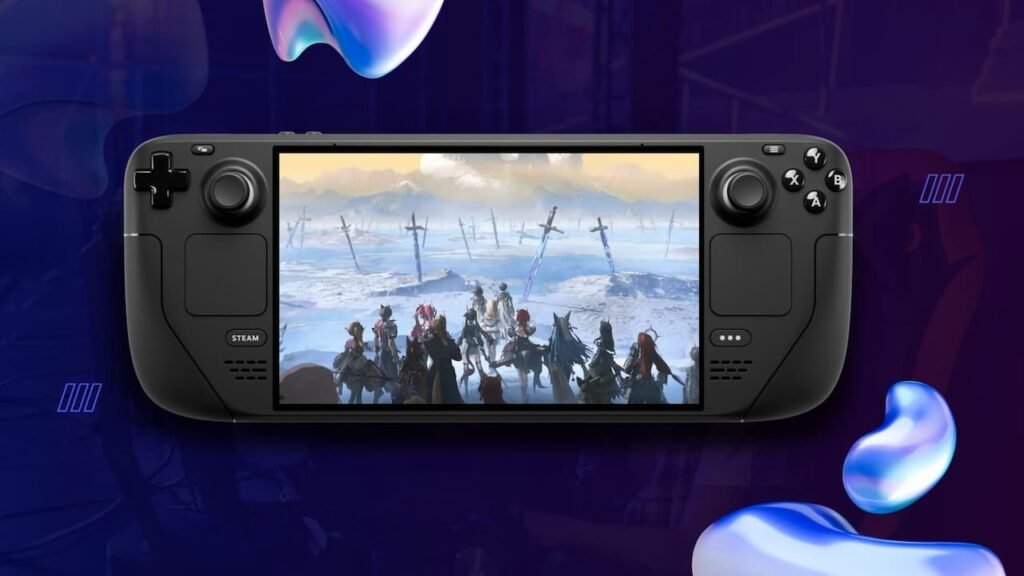
Since Endfield isn’t a native Steam title, you will have to install it as a non Steam game manually:
- Grab the installer from the website.
- Fire up Desktop Mode, and open Steam.
- Head to the Games tab on the top right side of the UI.
- Select ‘Add a Non-Steam Game to My Library’ from the drop down menu.
- Browse to your Downloads folder, and select the installer executable and hit the confirmation button.
- Before you begin playing, make sure to head over to the program’s Properties > Compatibility > Proton Experimental/Hotfix/Custom (within Steam).
- With the compatibility flag set, start the launcher and install it. Close it as soon as it finishes – don’t start the launcher.
- Next, fire up the game’s Properties menu. The next part is a bit tricky.
- Under ‘Target’, hit Browse and head to the game’s install directory (usually in /home/deck/.local/share/steam/steamapps/compatdata/<insert game ID here>/pfx/drive_c/Program Files/GRYPHLINE/) and select the Launcher.exe file.
- Under ‘Start In’, hit Browse and select the GRYPHLINK folder under the previous directory.
- Close the Properties tab to return to Steam.
You should now be able to launch the Endfield launcher through Steam. Download the in game files and wait for it to decompress. You’ll have to install a custom Proton version if you want to actually log in though, so read on.
How to Get Past the Login Screen
Running Arknights Endfield on the Steam Deck (or any Linux based operating system, really) will throw you an anti cheat (ACE) error without the proper Proton version.
You will need a custom Proton version known as dwproton for this, which can then be installed manually (or via ProtonPlus from Flathub) onto the Deck. After its installed, make sure to select dwproton as the custom Proton version from Properties > Compatibility tab and you should be good to go!

